


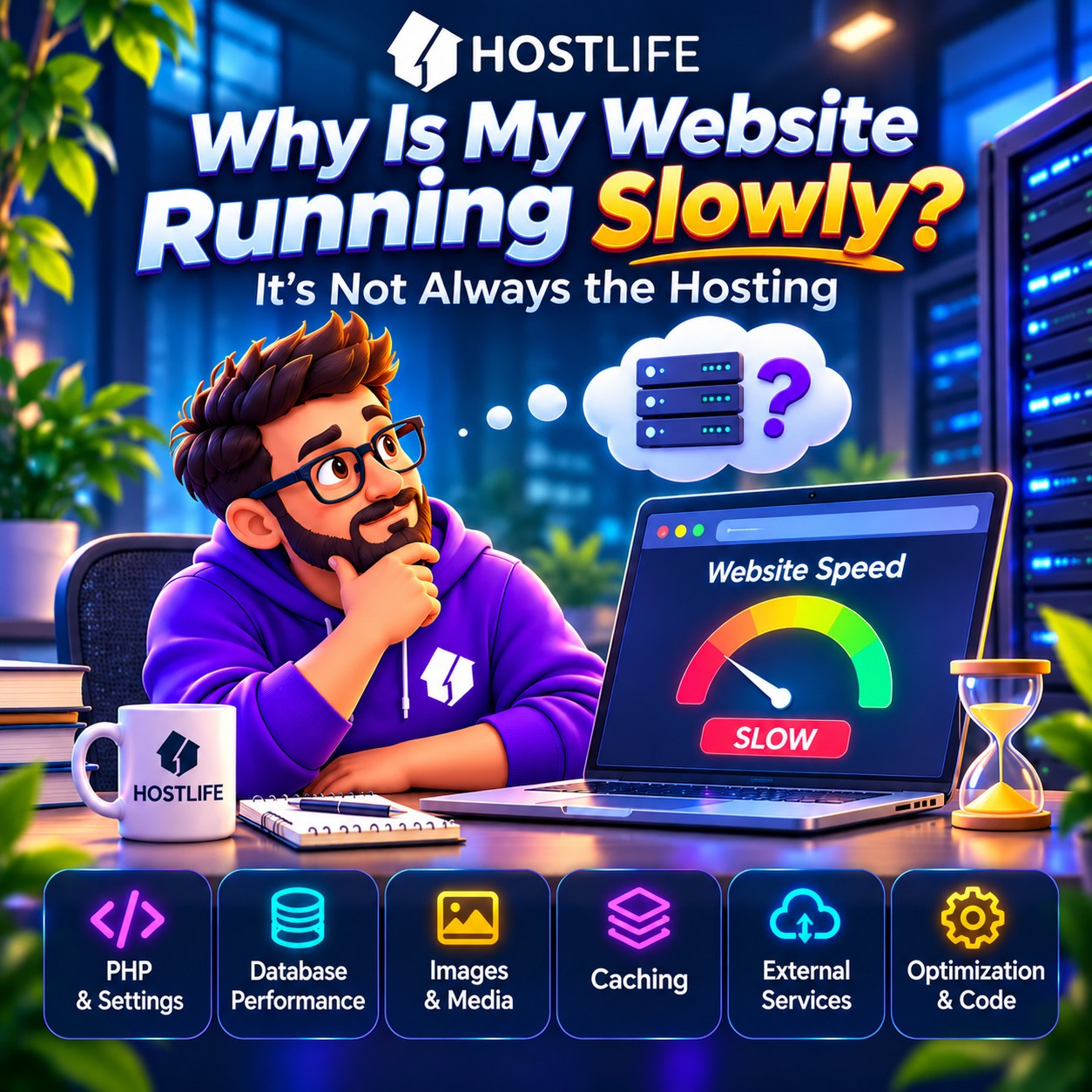
Slow website loading is one of the most common problems website owners face. Pages take too long to open, online stores are slow to load product catalogs, and sometimes a website noticeably slows down as the number of visitors increases.
Hosting is usually the first thing to come under suspicion. It seems logical: if a website is slow, the server must be running out of resources. In practice, however, the cause may lie somewhere else entirely.
Unoptimized images, slow database queries, inefficient PHP code, lack of caching, or dependencies on external services can slow down even a well-equipped server.
Let's look at the main reasons why websites become slow and find out where to start troubleshooting.
1. How Can You Tell What Exactly Is Slow?
Before making any changes, you need to identify the nature of the problem.
There are several fundamentally different situations:
- The entire website takes a long time to open. A possible cause is that the server takes too long to process requests, PHP code executes slowly, or database problems occur.
- HTML loads quickly, but the page takes a long time to display completely. Check images, JavaScript, CSS, and third-party resources.
- Only certain pages load slowly. The problem may be related to a specific section, database query, or website functionality.
- The website slows down only when visitor numbers increase. Possible causes include resource limits, insufficient application optimization, or problems handling concurrent requests.
- The problem occurs intermittently. Background tasks, backups, external services, or temporary traffic spikes may be responsible.
This distinction is important. If a page takes too long to be generated on the server, optimizing images is unlikely to solve the problem. Conversely, increasing RAM will not help if the browser has to download dozens of large images.
2. PHP and Application Settings
Many websites, especially those running on WordPress, Joomla, and other CMS platforms, use PHP to process requests and generate pages.
Performance depends not only on the server but also on the application itself, its extensions, and PHP settings.
What should you pay attention to?
PHP version.
Older PHP versions may be less efficient and lack support for modern language features. If your CMS, theme, and plugins are compatible, using a current supported PHP version can improve performance and security.
PHP OPcache.
OPcache stores compiled PHP bytecode in memory, so the interpreter does not have to compile scripts again every time they are requested.
This is an important optimization tool for dynamic websites.
Plugins and extensions.
Having a large number of installed plugins does not necessarily mean that a website will be slow. However, individual extensions may execute numerous additional database queries, access external APIs, or run resource-intensive operations.
Pay particular attention to recently installed extensions and those that perform tasks every time a page is opened.
PHP configuration.
Memory limits, script execution time, and other parameters should meet the application's requirements. Simply increasing these limits does not always solve the problem: sometimes it only allows an inefficient script to run for longer.
If you use a CMS and want to learn more about the server environment requirements of different platforms, we also recommend reading our article “How to Choose a CMS for Your Website and What Hosting Does It Need?”.
3. The Database: A Hidden Source of Problems
The database is one of the most common sources of slowdowns on dynamic websites.
For example, an online store may query its database to retrieve information about products, categories, prices, stock levels, users, and orders.
If queries are inefficient, the database does not use appropriate indexes, or tables are overloaded with unnecessary operations, page generation takes longer.
The main causes include:
- Queries that process too much data.
- Missing indexes.
- An inefficient database structure.
- An excessive number of queries when a single page is opened.
- Large tables containing accumulated temporary and outdated data.
- A large number of resource-intensive queries running simultaneously.
Analyzing slow MySQL or MariaDB queries is particularly useful if this functionality is available on your server.
For WordPress, additional information can be obtained using profiling tools such as Query Monitor. They help identify which website components are generating unnecessary database load.
Important: do not delete records or optimize tables blindly. Before making any changes, create a backup and make sure you understand the purpose of the data.
4. Images and Media Files
Sometimes the cause of slow loading is right in front of you — on the page itself.
Large photographs, banners, and product images can take up several megabytes each. If a page contains dozens of such files, the browser has to download a substantial amount of data.
What can you do?
Use modern image formats.
In many cases, WebP and AVIF can significantly reduce file sizes compared with JPEG and PNG while maintaining acceptable image quality.
Choose the right image dimensions.
There is no point uploading an image that is 3,000 pixels wide if it is displayed in a 400-pixel-wide block on the page.
Enable lazy loading.
Lazy loading prevents images located far below the visible part of a page from being downloaded until the user approaches them by scrolling.
However, images above the fold, especially the main page image, should not be deferred without careful consideration. Doing so may worsen the loading time of the page's main content.
Optimize videos.
Large video files hosted directly on your hosting account can put considerable load on the disk subsystem and network connection. For some projects, using specialized video services is a more sensible option.
5. Caching: Don't Make the Server Do the Same Work Over and Over
A dynamic website may perform numerous operations with every request: accessing the database, processing PHP code, generating HTML, and loading the required components.
Caching allows the results of some of these operations to be stored and reused.
There are several levels of caching.
Application-level caching.
A CMS or individual extensions can store calculation results, database query results, and other data to avoid repeating the same operations.
Page caching.
Instead of generating HTML again, the server can deliver a previously prepared page. This is particularly useful for informational websites and blogs where content does not change every second.
Object caching.
Redis or Memcached can be used to store frequently accessed data. This reduces the number of database queries and speeds up certain operations.
Browser caching.
Configuring Cache-Control headers and expiration times for static files allows the browser to reuse resources that have already been downloaded during subsequent visits.
Properly configured caching can significantly reduce server load. However, data freshness must be taken into account. For example, an online store's shopping cart or customer account must never be accidentally displayed to other users.
6. External Services and Third-Party Requests
A website can be slow even when its own server is handling the load without any problems.
The reason may be that the website is waiting for responses from external services.
These may include:
- Payment gateways.
- Delivery services and order cost calculators.
- External APIs.
- Analytics and statistics services.
- Widgets, advertising blocks, and third-party scripts.
- External fonts and JavaScript libraries.
Imagine that an online store sends a request to an external service every time a page is opened to retrieve delivery information. If that service takes several seconds to respond, the user may have to wait for the page to load even though the store's own server has already completed most of its work.
That is why troubleshooting should include not only your own resources but also third-party requests.
It is useful to identify which external components are actually required for the initial page rendering and which can be loaded asynchronously or after the main content.
7. Poorly Optimized Code and Frontend
Modern websites may use dozens of CSS files, JavaScript libraries, fonts, and other resources.
Even if the server delivers HTML quickly, the browser still needs to download and process all these components.
Performance can be affected by:
- A large number of JavaScript files.
- Unused CSS styles.
- Heavy libraries and scripts.
- Excessive animations and complex visual effects.
- Resources that block page loading.
- Lack of compression for transferred files.
Optimization options include minifying CSS and JavaScript, compressing resources, deferring non-essential scripts, and removing unused code.
However, you should not combine all scripts or enable the most aggressive optimization settings without testing. Some CMS platforms and plugins depend on a specific file loading order.
8. Could Hosting Actually Be the Problem?
Of course, it could. It would be wrong to rule out this possibility.
Even a well-optimized website needs sufficient resources to process requests.
What should you pay attention to?
Processor (CPU).
If the processor is constantly under heavy load, PHP scripts and other processes may run more slowly. Possible causes include high traffic, heavy queries, background tasks, or inefficient code.
RAM.
If an application does not have enough memory, errors, forced process termination, and other problems may occur. It is important to consider not only the total amount of memory but also the consumption of individual processes.
Disk subsystem.
Slow storage devices or high disk activity can significantly affect databases and applications that work extensively with files.
Resource limits.
Shared hosting and VPS plans may have limits on CPU time, memory, the number of concurrent processes, and other parameters.
Therefore, when problems occur, you should check resource usage statistics and available error logs.
If usage regularly reaches the configured limits, your project may genuinely need a more powerful configuration.
If you want to understand when shared hosting is no longer sufficient and when it makes sense to move to a VPS, we recommend reading our article “VPS vs. Shared Hosting: When Is It Time to Upgrade?”. It explains the differences between these solutions and the situations in which switching to a virtual server is actually justified.
However, upgrading to a more expensive plan only makes sense after identifying the cause. Otherwise, you may end up with a more expensive server and exactly the same problem.
9. How Can You Check Your Website's Speed Yourself?
You do not need extensive system administration knowledge to perform an initial diagnosis. There are tools that help evaluate loading speed and identify potential bottlenecks.
Google PageSpeed Insights
It allows you to evaluate page performance on mobile and desktop devices, receive optimization recommendations, and review Core Web Vitals metrics.
The service is particularly useful for identifying browser-side issues involving images, JavaScript, CSS, and content rendering.
Link: https://pagespeed.web.dev/
GTmetrix
It provides detailed information about page loading, individual resources, and the sequence of network requests.
It helps you identify which elements take the most time and which components should be investigated.
Link: https://gtmetrix.com/
Chrome DevTools
The built-in Chrome browser tools allow you to analyze network requests, resource loading times, JavaScript execution, and page performance.
The Network tab helps identify slow requests, while Performance lets you investigate browser activity and code execution.
Server monitoring
If you have access to a control panel or VPS, you should also check CPU load, RAM usage, disk activity, and error logs.
Remember that test results may depend on the region, network connection, cache, and test environment settings. It is therefore advisable to run several tests and compare results under the same conditions.
10. What Should You Prepare Before Contacting Technical Support?
If the problem persists after your own troubleshooting, contact your hosting provider's technical support team. Instead of sending a short message saying "the website is slow," it is better to provide information that will help specialists identify the cause more quickly.
We recommend preparing the following details.
1. The URL of the affected page
Provide the full URL of the page that loads slowly. If the problem affects the entire website, mention that separately.
2. Test results
Include links to your Google PageSpeed Insights or GTmetrix test results. It is better to provide links to the reports rather than screenshots alone.
If you tested several pages, include the results for each one.
3. When the problem occurs
Clarify the following:
- Is the website slow all the time or only occasionally?
- At what times do you notice the slowdown?
- Does the problem occur on every visit or only sometimes?
- Do other users experience it as well?
This information will help correlate the issue with server load and system events.
4. What exactly is slow?
For example:
- The homepage takes a long time to open.
- The product catalog loads slowly.
- The administration panel takes a long time to open.
- A delay occurs during checkout.
- The page opens quickly, but images and other elements load with a delay.
The more precise your description, the easier it is to determine where to start troubleshooting.
5. What Have You Already Checked?
Tell us what steps you have taken: whether you disabled plugins, cleared the cache, optimized images, changed PHP settings, or performed other actions.
If the problem appeared after a CMS update, plugin installation, or settings change, be sure to mention it.
6. Additional Information
If you have technical data available, include:
- Screenshots of browser errors or the developer console.
- CPU and RAM usage information, if available.
- Error messages from website logs.
- A HAR file from Chrome DevTools if the problem is related to the sequence of network requests.
Do not send passwords, API keys, cookies, authentication tokens, or other confidential information. Before sharing a HAR file or logs, make sure they do not contain sensitive data.
Why Is This Important?
Technical support will be able to determine more quickly where to look for the cause: on the server side, in the CMS, database, website settings, or external services.
As a result, instead of asking several additional questions and repeating checks, a specialist will have the initial information needed for troubleshooting right away.
The more accurate the information in your support request, the sooner the team can move from identifying the problem to solving it.
11. In What Order Should You Troubleshoot the Problem?
To avoid wasting time on random changes, we recommend following a systematic approach.
Step 1. Check which pages are slow.
If the problem affects the entire website, look for a common cause. If it affects only specific sections, check their functionality and queries.
Step 2. Measure the server response time.
Separate the server response waiting time from the total page loading time. This will help you understand whether to look for the problem in the application and server or in the browser and the resources being loaded.
Step 3. Check images and static files.
Look at image dimensions, the number of resources, and the total amount of data being downloaded.
Step 4. Analyze PHP and the database.
Check slow queries, plugins, extensions, and application performance.
Step 5. Check caching.
Make sure static resources are cached and that application-level or server-level caching is used for suitable pages.
Step 6. Check external services.
Find out whether third-party APIs, widgets, or scripts are delaying page loading.
Step 7. Evaluate your hosting resources.
If previous checks have not revealed any obvious problems, or monitoring shows that resources are regularly insufficient, consider upgrading your configuration.
This approach helps avoid situations where a website owner pays for a more expensive plan even though the problem could have been solved with a few configuration changes.
Conclusion
A slow website does not necessarily mean that it needs more server power.
The cause may lie in PHP code, the database, images, caching, external services, or the frontend. Sometimes the problem really is related to hosting resources, but this can only be determined after proper troubleshooting.
Do not rush to change hosting providers or move to a VPS just because your website loads slowly. Find the bottleneck first.
A properly optimized website can run quickly even on a relatively modest configuration. A powerful server, on the other hand, cannot fully compensate for inefficient code and poorly organized application processes.
If your project genuinely needs more resources after optimization, you can consider upgrading to a more powerful plan, a VPS, or a HOSTLIFE dedicated server.
For projects with different resource requirements, we offer the Essential VPS, Standard VPS, and Performance VPS plans. If your project requires dedicated hardware resources, you can also consider Dedicated Servers.
The key is to choose infrastructure that meets your project's actual needs rather than trying to solve every problem by simply increasing hardware capacity.


